
This article will cover the following:
- What is Multi-Factor Authentication?
- Why was MFA built?
- What authentication apps are supported?
- What are the best practices for rolling out MFA?
- How do I enable MFA on my system?
- What new functionality is available with MFA?
- Frequently asked questions
MFA is designed for your employees using CAKE only. Affiliates, Advertisers, and Buyers do not use this feature.
What Is Multi-Factor Authentication?
Multi-Factor Authentication (MFA) is a security measure that protects user accounts by requiring two forms of verification before granting access. Within CAKE, the first factor is the standard username and password, and the second is a 6-digit verification code generated by an authentication app on the user's mobile device.
Why Was MFA Built?
MFA was introduced to strengthen the security of CAKE employee accounts and reduce the risk of unauthorized access. It ensures that even if a username and password are compromised, a malicious actor still cannot access the account without the second verification step. This added layer helps protect sensitive platform data and supports compliance with security best practices.
What Authentication Apps Are Supported?
CAKE supports the most widely used mobile authentication applications, available for both iOS and Android:
| App | iOS | Android |
|---|---|---|
| Google Authenticator | Download | Download |
| Microsoft Authenticator | Download | Download |
What Are the Best Practices for Rolling Out MFA?
Before enabling MFA, follow these best practices to ensure a smooth rollout:
- Download the App – All employees should install a supported authenticator app on their mobile device before the launch date.
- Set a Release Date – Choose an internal date to activate the MFA requirement.
- Communicate Early – Let employees know in advance that MFA will be required. Affiliates, Advertisers, and Buyers are not affected.
- Enable the Global Setting – Activate the "Enable Multi-Factor Authentication" setting on your chosen launch date (see below for details).
- Guide Setup – On their next login, employees will be prompted to scan a QR code using their mobile app, enter the 6-digit code generated by the app, and submit to complete login. Once completed, all future logins will require the code after entering a username and password.
How Do I Enable MFA on My System?
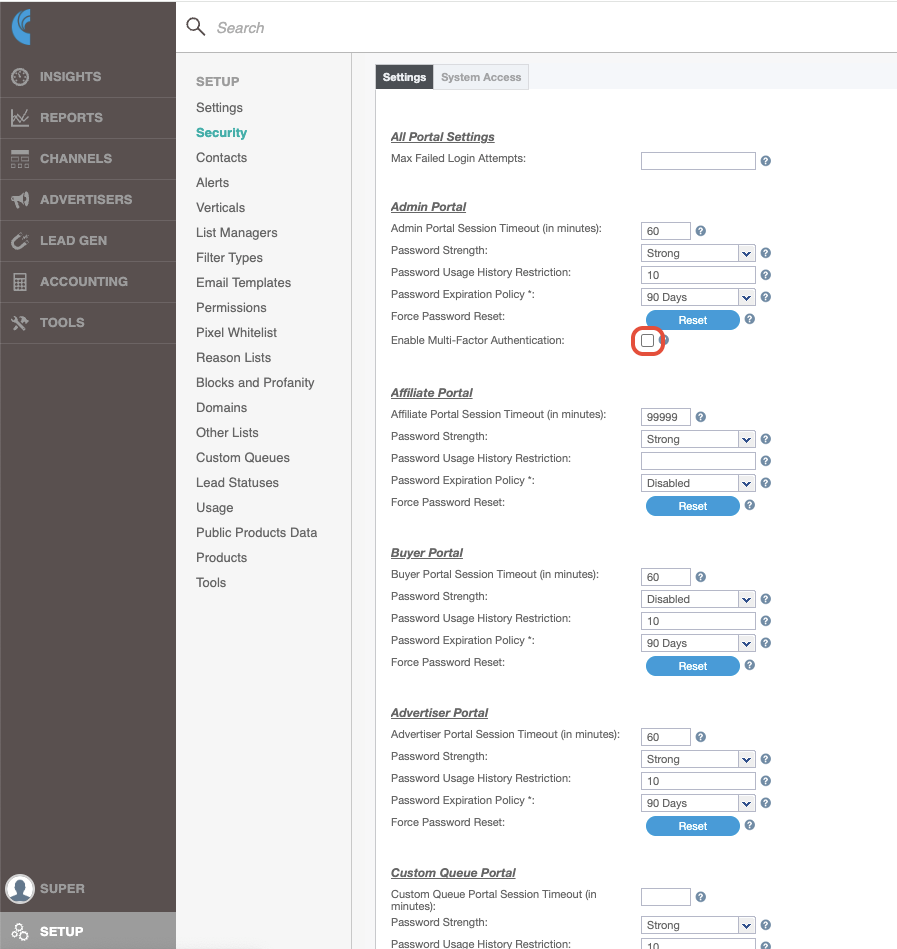
To enable MFA on your CAKE account, follow these steps:
- Navigate to the Setup main tab.
- Navigate to the Security sub tab.
- Select Settings within the Security tab.
- Check the box for "Enable Multi-Factor Authentication."
- Optionally check the box for "Remember MFA for 30 Days."
- Click Save.
What New Functionality Is Available With MFA?
If you have any questions, please reach out to your dedicated CAKE Client Success Manager/Account Manager or contact the CAKE Support Team at support@getCAKE.com.