
This article will cover the following:
- A Guide to CAKE's Global Settings
- What are Global Settings?
- Where to find your Global Settings
- System Settings
- Affiliate Signup
- Naming ID Conventions
A Guide to CAKE's Global Settings
This article will cover the following:
What are Global Settings?
Global Settings is an area in CAKE where you are able to set default settings that will impact the rest of your system.
Some features in CAKE will not be present until they are enabled within Global Settings. This document will outline the Global Settings and define each one.
Where to find your Global Settings

To access CAKE's Global Settings, click the Setup main tab > Settings sub tab > Global Settings
System Settings
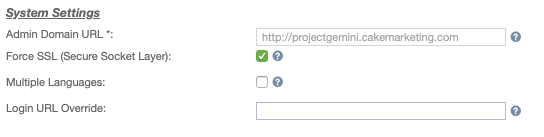
Admin Domain URL: The Admin Domain URL is the public domain you and your clients will use to access CAKE. This is chosen during the onboarding process.
Force SSL (Secure Socket Layer): If enabled, users must login through a secure version of your Admin Domain. Ex https://yourdomain.com (instead of http://yourdomain.com).
Multiple Languages: If enabled, users can set their language in their portal. A list of desired languages must be submitted to your Account Manager prior to using this functionality.
Login URL Override: If this URL is set, users who navigate to the default login page will be redirected to this URL.
Affiliate Signup
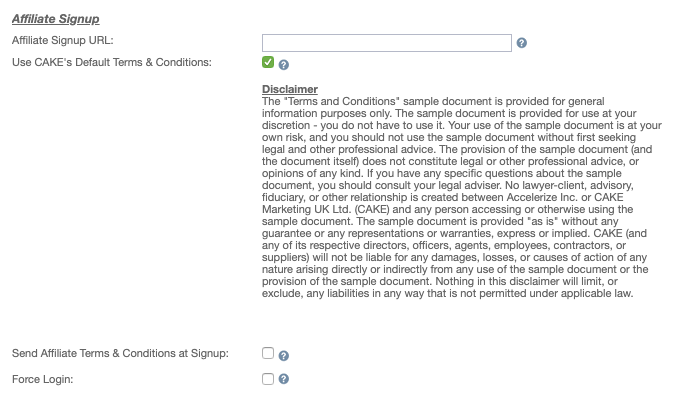
Affiliate Signup URL: If this URL is set, any links to the built‑in CAKE Affiliate Signup page will be redirected to this URL instead.
Use CAKE's Default Terms & Conditions: Enable this to pre‑populate the Terms and Conditions for the Affiliate signup page (http://#domain#.com/affiliate_signup.aspx). When disabled you will be displayed “Affiliate Signup Terms & Conditions”.
Affiliate Signup Terms & Conditions: This text field allows you to customize the Terms & Conditions on the Affiliate Signup page. HTML is accepted.
Send Affiliate Terms & Conditions at Signup: When enabled, this will trigger an email containing the Terms and Conditions the Affiliate agreed to at signup. This will also be stored on the History tab of the Affiliate Card in the Admin portal.
Force Login: If enabled, logged in users are not automatically redirected into CAKE when visiting the CAKE default login page due to the cache.
Naming ID Conventions
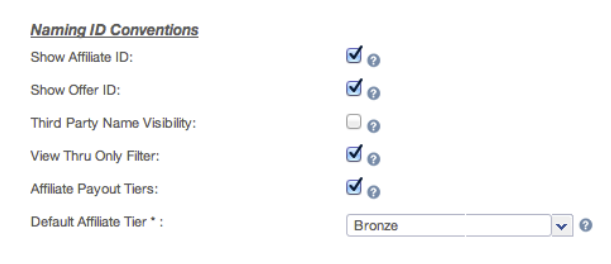
Show Affiliate ID: If enabled, the Affiliate ID will appear before the affiliate name within the various grids and reporting.
Show Offer ID: If enabled, the Offer ID will appear before the offer name within the various grids and reporting.
Third Party Name Visibility: If selected, the Third Party Name will appear after campaign name. The Third Party Name allows you to provide a unique name to your Campaigns (This setting must be enabled by the CAKE Team – please reach out to Support to learn more).
View Thru Only Filter: If enabled a View Thru Only filter will show on Master Reports allowing you to distinguish traditional Conversions from View Thru Conversions.


If you have any questions, please reach out to your dedicated CAKE Client Success Manager/Account Manager or contact the CAKE Support Team at support@getCAKE.com.