Submit a Ticket My Tickets
Welcome
Login  Sign up

Enabling and Implementing Dayparting in Cake

In this article:

  • What is Dayparting?
  • Getting There: Finding Dayparting in CAKE
  • Creating Your First Dayparting Schedule
    • Step 1: Choose How You Want to Add a Schedule
    • Step 2: Choose Who This Schedule Applies To
    • Step 3: Set Your Days, Times, and Payout
    • Step 4: Save Your Schedule
  • Making Changes to an Existing Schedule

What is Dayparting?

Dayparting is a feature in CAKE that lets you automatically adjust how much you pay affiliates based on the day of the week or time of day — without having to manually update anything.

For example, let's say your call center is only open Monday through Friday from 9 am to 5 pm. You might want to pay affiliates a higher rate during the hours when your team is available to handle leads, and a lower rate (or none at all) outside those hours. Dayparting handles that for you automatically.

Once you set up a schedule, CAKE will apply the payout you've defined at exactly the right time — and switch back when the window ends.


Getting There: Finding Dayparting in CAKE

Before you can create a schedule, you need to navigate to the right place in CAKE. Here's how:

  1. Look at the main navigation menu at the top of your screen and click on Affiliates.
  2. In the menu that appears below it, click on Dayparting.
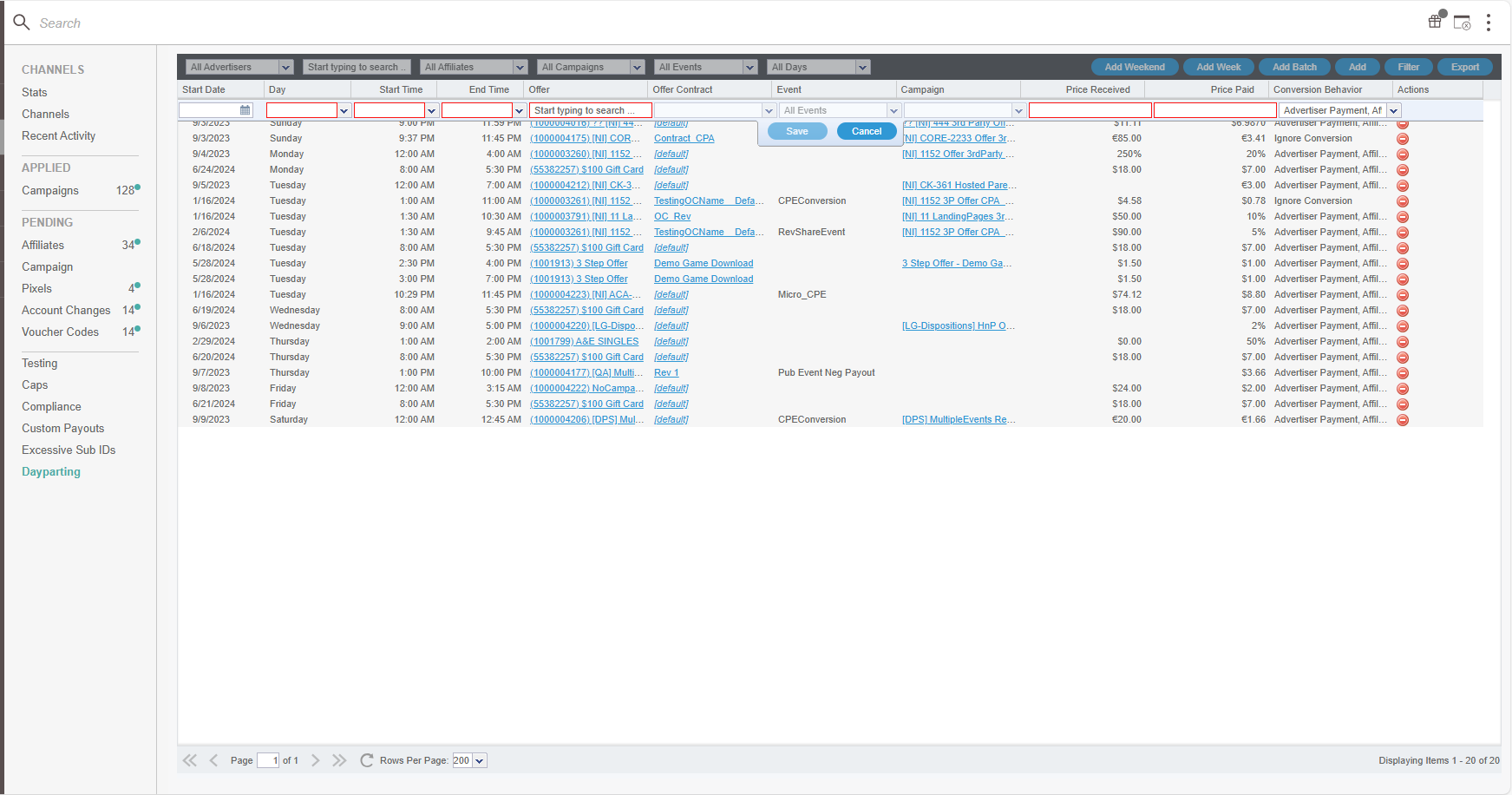
You'll land on the Dayparting grid — a table that lists all of your existing dayparting schedules. If this is your first time here, it will be empty. That's perfectly normal.


Creating Your First Dayparting Schedule

To add a new schedule, you'll use a setup wizard — a short series of steps that walks you through the process one screen at a time. Here's how to complete each step.

Step 1: Choose How You Want to Add a Schedule

At the top of the Dayparting grid, you'll see several buttons. Each one opens the same setup wizard, but with some days already selected for you as a shortcut:

  • Add: Opens a blank schedule with nothing pre-selected. Use this if you want full control over which days are included.
  • Add Weekday: Opens the wizard with Monday through Friday already checked. Great if your schedule follows a standard work week.
  • Add Weekend: Opens the wizard with Saturday and Sunday already checked.
  • Add Batch: Lets you create several schedules at once. This is a more advanced option — if you're just getting started, stick with one of the three options above.


Click whichever button makes the most sense for your situation to get started

Pro-TipIf your schedule covers weekdays, click Add Weekday instead of Add. It saves you the step of manually checking each day

Step 2: Choose Who This Schedule Applies To

Next, you'll be asked to choose the scope of your schedule. This means deciding how broadly or narrowly you want the payout change to apply. Think of it like a targeting setting — the wider the scope, the more traffic it affects.

Here are your options, from broadest to most specific:

  • Offer: The payout change will apply to all affiliates running this offer. Use this if you want a blanket rule for everyone.
  • Offer Contract: Applies to all affiliates who are on a specific contract for this offer. Use this if you have grouped affiliates under a shared agreement.
  • Campaign: Applies only to one specific affiliate's traffic. Use this to target a single partner.
  • Event: Applies to a specific conversion event type, such as "Sale" or "Lead," across all affiliates. Use this when different events have different payout needs.
  • Campaign + Event: The most targeted option — applies to one specific affiliate and one specific event type. Use this when you need precise control over a single partner's specific action.


Not Sure Which to Pick?If you're new to this, start with Offer or Campaign. Offer is the simplest — it covers everyone at once. A campaign is a good choice if you just want to adjust rates for one affiliate.

Step 3: Set Your Days, Times, and Payout

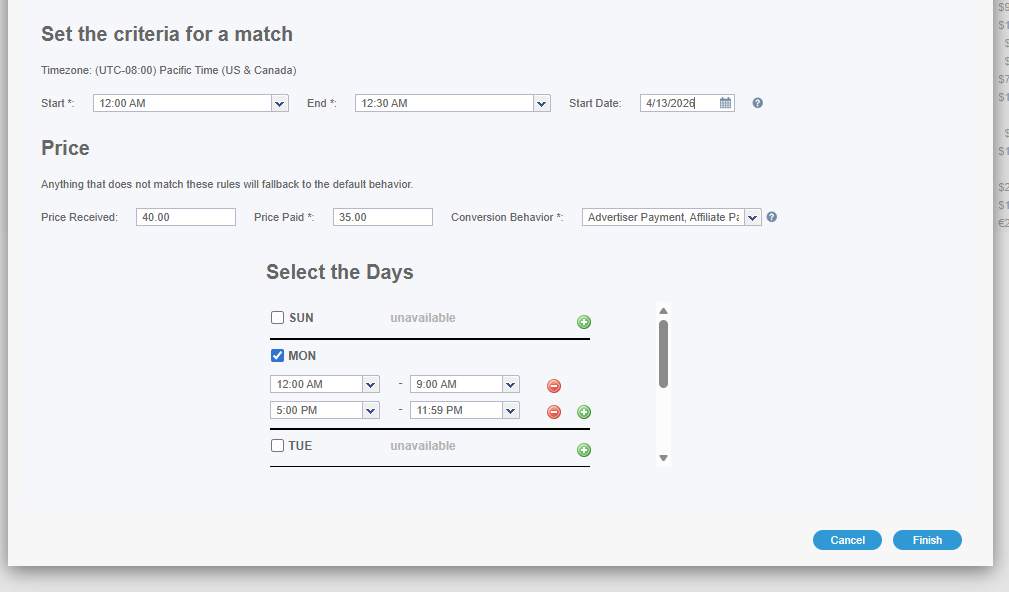
Now you'll define the actual schedule — when the payout change kicks in and what the new rate will be:

  • Days of the Week: Check the boxes for each day you want this schedule to be active. If you used the Add Weekday or Add Weekend shortcut, these will already be filled in for you.
  • Start Time and End Time: Enter the time window when the custom payout should apply. For example, if you want the rate to change from 9 am to 5 pm, enter those times here. Make sure you're using the correct time zone — CAKE uses your platform's reporting time zone by default.
  • Payout / Price: Enter the dollar amount you want to pay during this window. This custom rate will override your standard payout while the schedule is active.

Step 4: Save Your Schedule

Once everything looks good, click Finish to save your schedule. You'll be taken back to the Dayparting grid, where your new schedule will appear as a new row in the list.

From this point on, CAKE will automatically apply your custom payout during the time window you set — and revert to the standard rate when the window ends. You don't need to do anything else.


Making Changes to an Existing Schedule

Need to update a schedule after you've created it? No problem. Find the schedule in the Dayparting grid, then double-click the row. This will reopen it so you can update the days, times, payout, or scope.

Once you've made your updates and saved your changes, the updated schedule will take effect automatically.


Did you find it helpful? Yes No

Send feedback
Sorry we couldn't be helpful. Help us improve this article with your feedback.

