
The Postback Fallback conversion tracking method uses both the Postback URL and iFrame HTML Pixel to provide you with the benefits of both Server-to-Server and browser based pixel tracking.
This article will cover the following:
- Section 1: When to use the Postback Fallback Method
- Section 2: Postback Fallback Pixel Logic
- Section 3: Conversions From Whitelist Only
- Section 4: Generate Postback Fallback Pixels
- Section 5: Validate in the Pixel Log
Section 1: When to use the Postback Fallback Method
This conversion tracking method should be used if you prefer to track conversions server-side for accuracy and other benefits, such as fraud prevention, but also need to support browser based pixels in order to piggy‑back affiliate campaign pixels.
Since not all tracking platforms support Postback URL's, some networks and affiliates prefer to use HTML Conversion Pixels to allow for downstream piggy‑backing capabilities. And because server tracking does not allow you to fire a browser‑based HTML Pixel, CAKE's Postback Fallback method is the best solution.
Section 2: Postback Fallback Pixel Logic

The Postback Fallback method works by firing both the Postback URL and the iFrame HTML Pixel for the same user.
The Postback URL should be fired first so that CAKE will store the conversion from the server call.
CAKE should then receive the fallback iFrame Pixel after the conversion has stored. This pixel call will come from the thank‑you page where an affiliate's campaign HTML Pixel will be piggy‑backed.
Section 3: Conversions From Whitelist Only
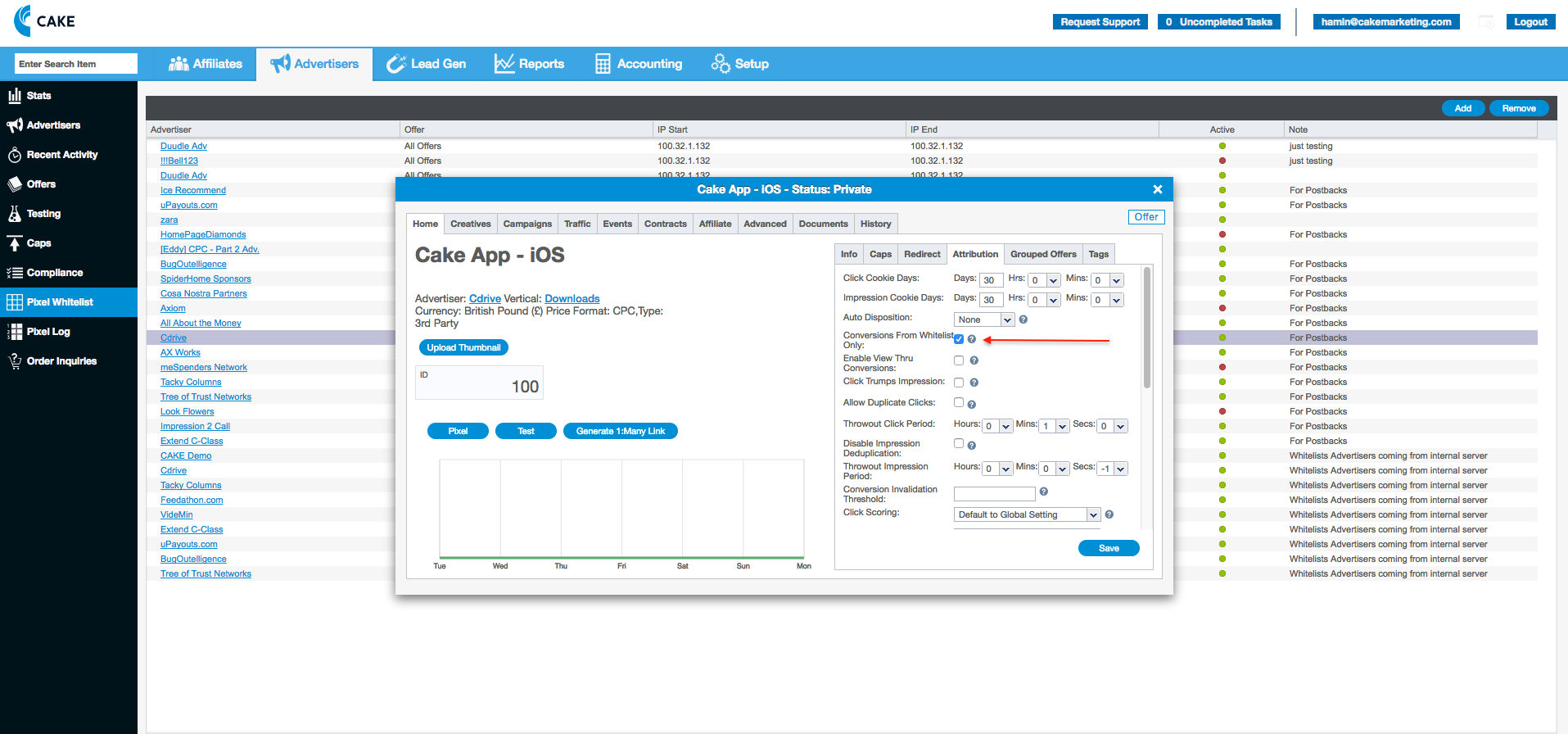
For the best fraud prevention available within CAKE, be sure to use the Conversions From Whitelist Only setting alongside the Postback Fallback conversion tracking method.
With this Offer level setting enabled, CAKE will only store conversions from your server IP's which can be whitelisted in the CAKE Admin portal.
When Conversions from Whitelist Only is used alongside the Postback Fallback method, if the iFrame fallback pixel is received before a conversion has been stored by the Postback URL, the iFrame Pixel will be ignored and have a disposition of "IP Not Whitelisted."
To enable Conversions from Whitelist Only, follow these steps:
- Open the Offer card.
- Select the Attribution sub‑tab.


If you have any questions, please reach out to your dedicated CAKE Client Success Manager/Account Manager or contact the CAKE Support Team at support@getCAKE.com.