
This article will cover the following:
Home Tab Items

1) This is the name of your Offer that can be changed in the Name Field within the Info tab
2) The Offer card allows you to "breadcrumb" to other main entities in the system. Clicking on the hyperlinks will open up the respective cards for the Vertical or Advertiser. This section will also show you the optional currency for the Offer, the Price Format and the type of Offer.
3) The Upload Thumbnail feature allows you to display an image that represents your Offer. This will be displayed in the Offer card within the Admin Portal and the Affiliate Portal. This will also link out to the Preview Link if you have one set. Ideal size for this image is 300x200 pixels.
4) This is the Offer ID that can be referenced in various areas of the platform, such as search.
5) Click the Pixel button to generate a Conversion Pixel or Event Pixel.
6) Click the Test button to launch a new browser window that will give you an opportunity to test the Offer by clicking on your test link, completing the conversion flow, and then returning to the test page to verify the conversion.
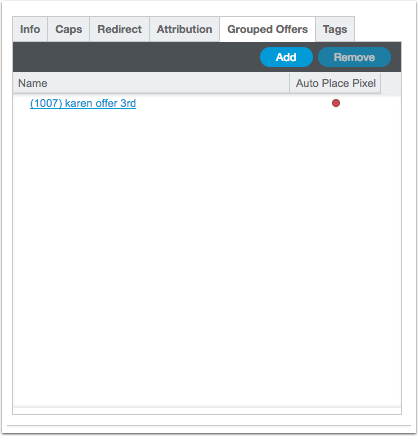
7) CAKE has an optional feature called Grouped Offers. When enabled, the Offer card will display a "Generate 1:Many Link" that will allow you to link several Offers together for attribution purposes.
Info Tab
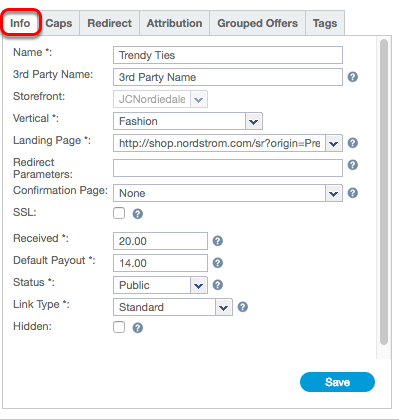
Name: This is the name of the offer. it will be visible to Affiliates in the Affiliate Portal
Third Party Name: This is an optional field that will not show by default. This can be an ID or value associated to an offer. This value can be assigned if you are working with a third party system where the offer name is different. This value will be returned through the offer API request.
Storefront: (must have eCommerce license):
Vertical: The Vertical can be changed at any time. Changing the Vertical for an Offer could alter the redirect strategy that you have setup since a Redirect Offer can be set within each Vertical.
Landing Page: This is the link provided by the Advertiser. Most Advertisers want to be passed Affiliate ID, Sub IDs and other values dynamically. Refer to CAKE’s token list for potential tokens to be used in the Offer Link. Hover over Settings and click on Show Tokens to view this list.
Redirect
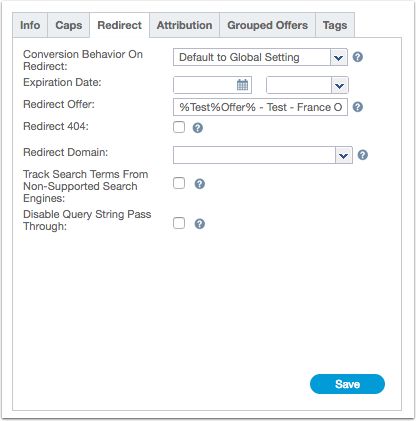
Redirect Parameters: Use this input to enter parameters with CAKE tokens that you want to append to your Offer Link when CAKE redirects. The most common use of this feature is deep linking where networks/advertisers want to ensure that certain parameters are sent to the destination landing page. This field supports all CAKE tokens compatible with the Offer Link. This field will also URL Encode Redirect Parameters. Please see examples below for how CAKE handles parameters and token replacement.Confirmation Page Link: This is the location where users will be sent post Conversion. Users who click on the same tracking link within the defined Click Cookie Days will be redirected to the Thank You Link, if an Upsell Offer is not defined.
SSL: Enabling this feature will generate a secure conversion pixel for this Offer, force the Affiliate to place a secure pixel on the Campaign, and will force the consumer to redirect through a secure CAKE tracking link.
Received: This is where you can update the revenue for the Offer. Updates will happen in real time.
Default Payout: This is where you can update the default payout for the Offer, which will change the displayed price in the Affiliate Portal. Changing the value in this field will NOT affect Active Campaigns.
Status: The status of an Offer can be changed at any time. Changing an Offer from Private, Apply To Run or Public to Private, Apply To Run or Public will not affect an Affiliate that already has an Active Campaign. Changing an Offer to Inactive will prohibit an Affiliate that had an Active Campaign from opening the Offer Card and will redirect any traffic to the Offer Redirect, Vertical Redirect or the Global Redirect depending on the settings in place. Inactive offers will not be viewable in the Affiliate portal unless they already have traffic run to them.
Hidden: Changing an Offer to Hidden will accomplish the following:
- Affiliates with Active Campaigns will no longer be able to access the Offer

 Card.
Card.
- Affiliates with Active Campaigns can still drive traffic to the Offer normally.
- Affiliates that do not have Active Campaigns will no longer see the Offer assuming the Status of the Offer is Public or Apply To Run.
Redirect Parameter Examples
If you have any questions, please reach out to your dedicated CAKE Client Success Manager/Account Manager or contact the CAKE Support Team at support@getCAKE.com.