
This article will cover the following:
- When Should I Use This Tool?
- What Does the Postback Uploader Do?
- What Fields Does The File Template Use?
- How Do I Use The Tool?
- How Does The Tool Process The File?
When Should I Use This Tool?
If your advertiser is unable to configure real-time postback tracking or place a pixel on their page, they may instead provide a delayed conversion report containing the CAKE Request ID for each event. The Postback Uploader allows you to take that report and create conversions from it — including the option to backdate them to the original event time. Because this tool replicates server-side tracking, it will also trigger downstream affiliate postbacks for partner optimization.
What Does the Postback Uploader Do?
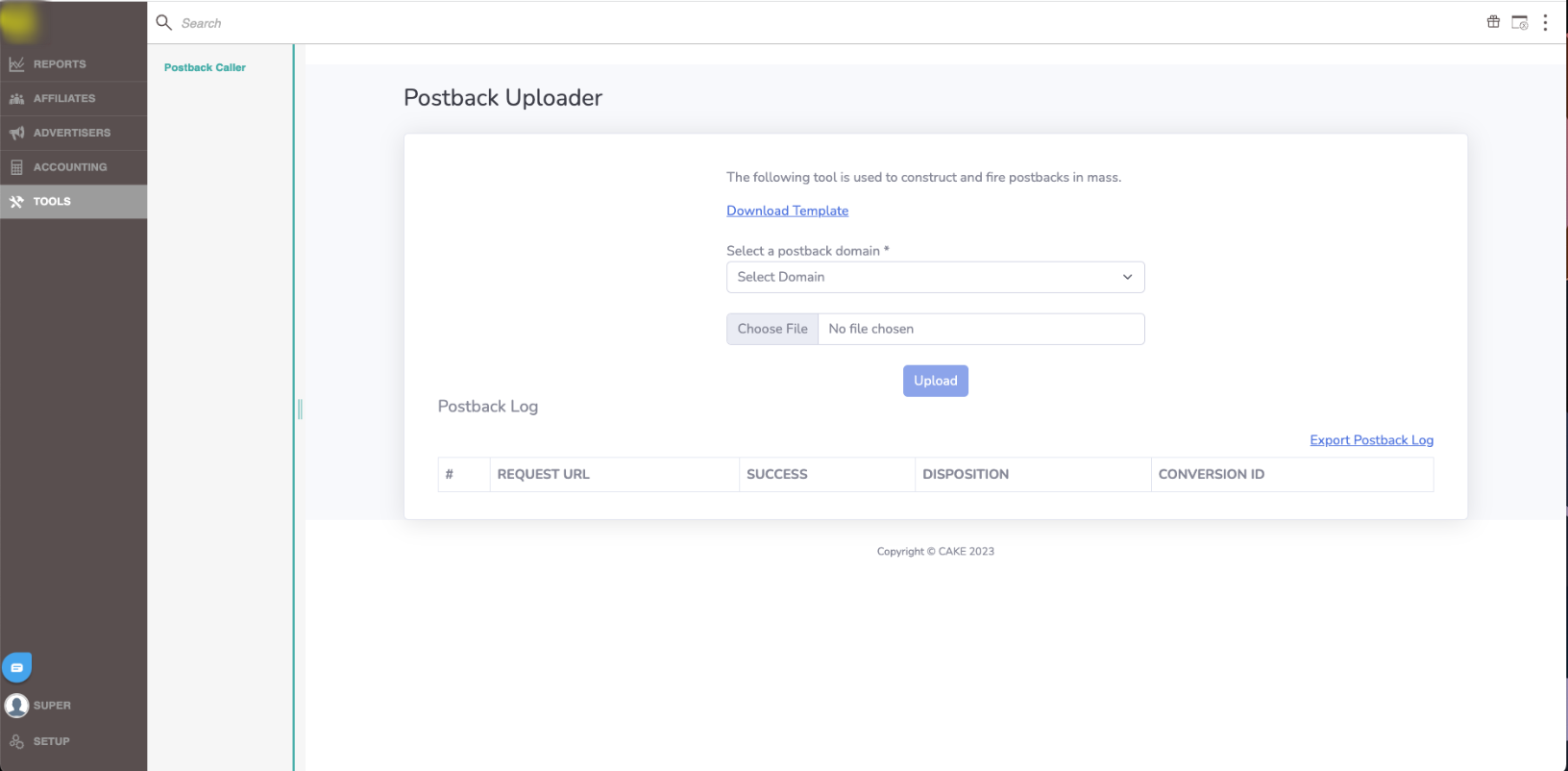
The Postback Uploader allows you to upload a .xlsx file containing offline conversion data to generate postback requests in bulk. The tool processes each row in the file, fires the corresponding requests, and logs the result for each one. Once processing is complete, you can review the success or error status for each row and export the full log for your records.
What Fields Does The File Template Use?
The file template that the tool uses requires 3 fields (* denotes required) and has 16 optional fields. Those fields are:
- *Event ID or Event 3rd Party Name
- *Request ID or Oreqid
- *Offer ID (only required with the request ID above. Not required if oreqid is used above)
- Date/Time (requires postback date override feature be enabled to use)
- Transaction ID
- Revenue
- Payout
- Voucher Code
- Unique Device ID
- Advertiser Sub ID 1-10

Note: Date/Time must follow server format of YYYY-MM-DDTHH:MM:SS-HH:MM (value after the - is the UTC offset for instance timezone). For example: 2025-10-27T23:59:59-04:00 will add the conversion to October 27th at 11:59pm EST.
How Do I Use The Tool?
- Click Download Template and save the .xlsx file locally.
- Fill in at least the three required columns: event identifier (Event ID or 3rd Party Event Name), session identifier (Request ID or oreqid) and Offer ID. Optionally add Date/Time, Transaction ID, Revenue, and Payout.
- Save your updated file.
- Select the appropriate cookie domain from the dropdown. If only one domain is configured, it will be pre‑selected.
- Click Choose File and select your saved file.
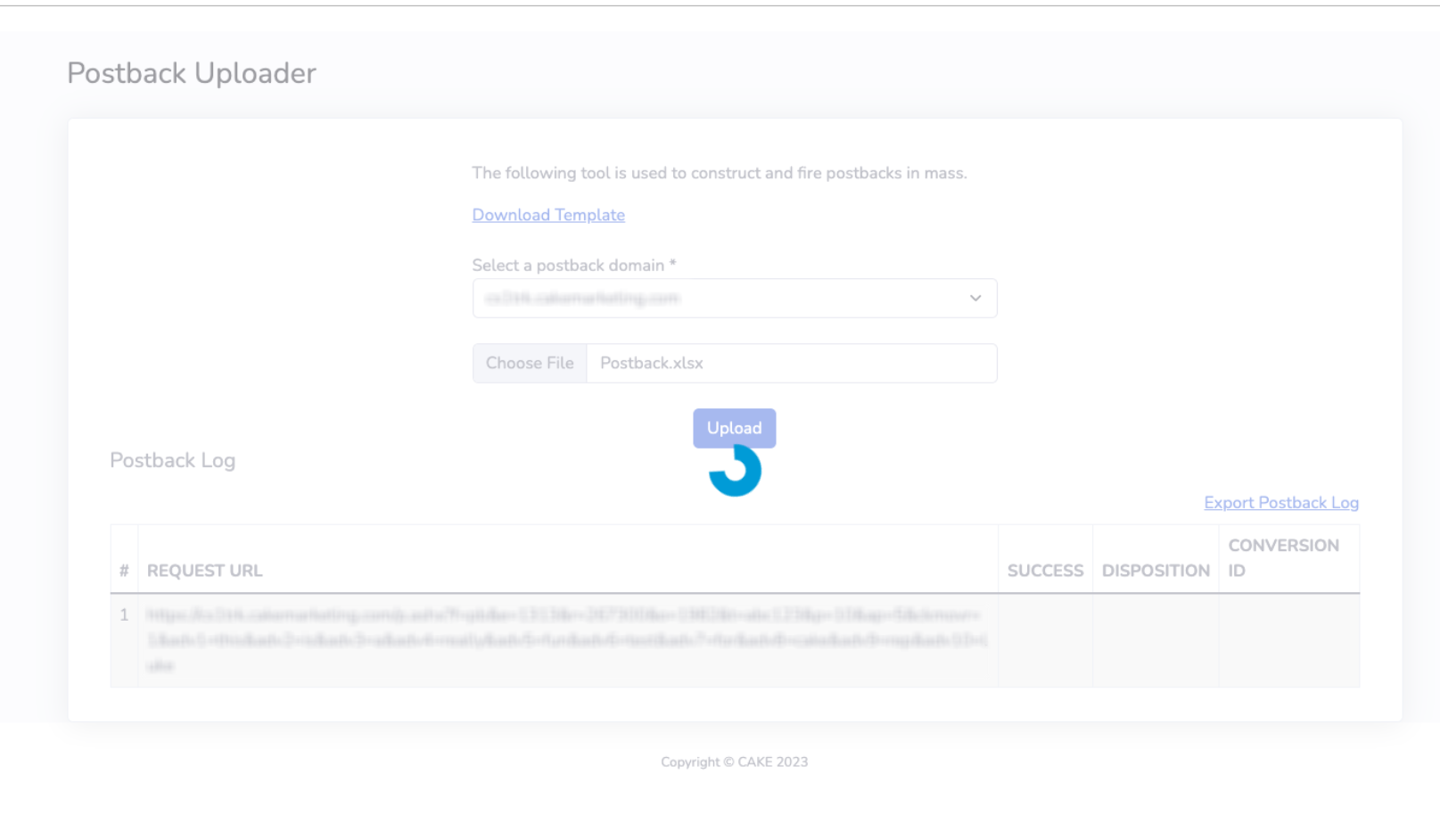
- Click Upload and confirm. If you receive an error, verify that all required fields are present and correctly formatted.
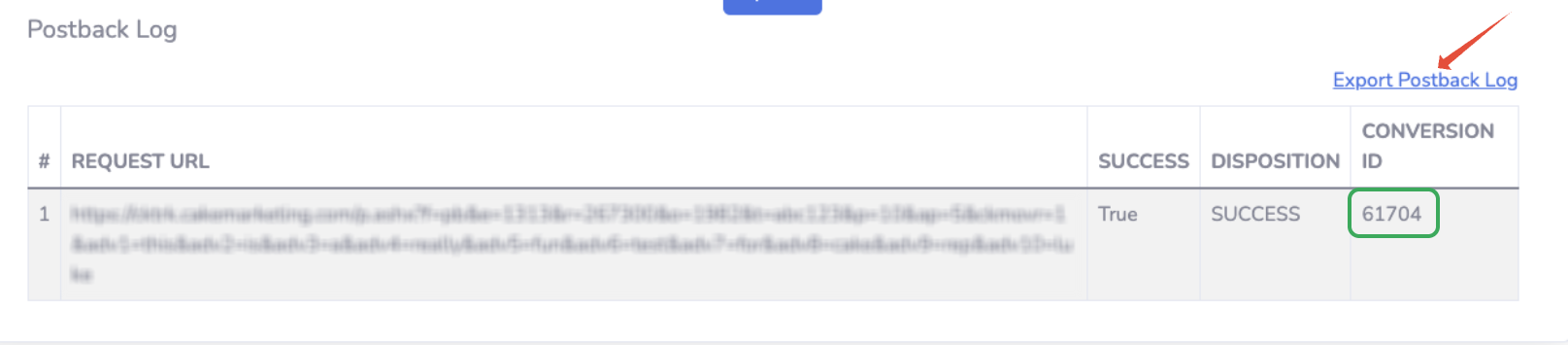
- Scroll to the bottom of the Postback Log section to confirm all rows have finished processing.
- Click Export Postback Log to save a record of the results.
How Does The Tool Process The File?
Each row is validated to confirm it includes the required fields and is properly formatted. Once validated, the tool processes multiple rows simultaneously, with a loading indicator shown during processing. Each request receives a response from the platform that is recorded in the postback log, showing whether the request succeeded or encountered an error. This log can be exported directly from the tool for further record keeping or analysis.
If you have any questions, please reach out to your dedicated CAKE Client Success Manager/Account Manager or contact the CAKE Support Team at support@getCAKE.com.